
Respondus, the maker of LockDown Browser and Monitor, has recently released a new option that can require students to use a second camera to record their workspace during an exam with the aim of reducing the use of unpermitted resources. Respondus Monitor works in conjunction with Respondus LockDown browser and can be enabled and configured within Blackboard. While this new feature can add additional security during test taking, it may also add potential risks and privacy concerns.
Fast Facts
- Respondus LockDown Browser can be enabled on tests in Blackboard
- LockDown browser removes a student’s ability to navigate outside of the browser on that device
- Monitor can be enabled on a test using LockDown Browser
- Monitor can record a student’s screen and/or webcam when enabled
- Instructors can now require a second device to be used to record a student’s physical workspace
What are LockDown Browser and Monitor?
If you have not used LockDown Browser or are unfamiliar with the product, it is a web browser similar to Chrome, Safari, or Edge, but it prevents students from navigating outside the browser, such as by accessing files or programs on their computer, while completing an exam. It also prevents them from accessing materials in the Blackboard course or opening other websites unless you have explicitly provided permission for a specific site. Students are required to download the browser and are walked through a set-up process and security check prior to the exam. For more information on LockDown Browser, view CITL’s Respondus LockDown Browser resource, tutorials, and guides.
Monitor is a feature that can be enabled when using LockDown browser. Monitor can record a student’s screen and/or webcam while they complete an exam.
Second Camera
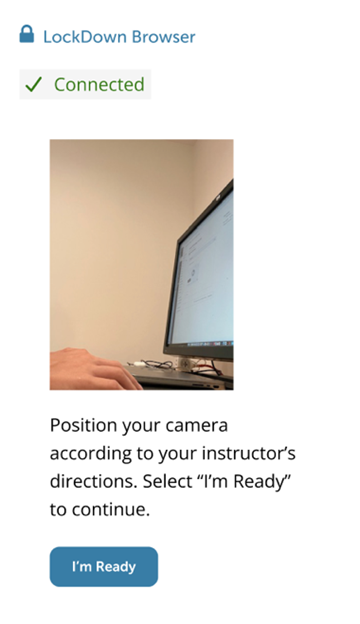
By selecting the Second Camera option, instructors have the additional ability to require students to use a second device such as a cell phone to record themselves, their workspace, and/or their environment while completing the exam.
Balancing Exam Integrity with Complexity
If you’re concerned about student cheating, we recommend reviewing CITL’s Tips for Preventing Cheating resource for additional steps you can take instead of or in addition to using Respondus LockDown Browser and/or Monitor.
While Monitor and the second camera option may provide additional security benefits, they also could present potential problems. These include technology challenges, such as not having a capable second device. It can also be time-consuming for students to work through the set-up procedure for Monitor and the second camera, cutting into available time to complete a test. Students may also find Monitor, and especially the second camera option, intrusive or a violation of their privacy.
How to enable SafeAssign Browser, Monitor, and Second Camera
To enable SafeAssign Browser:
- In a Blackboard Test, open the test settings by clicking the settings cog in the upper right of the screen next to Assessment Settings.
- Scroll down to “Assessment security” and click LockDown Browser Dashboard.
- Locate the assessment, and click the drop-down arrow to the left of the assessment title.
- Click Settings.
- Select “Require LockDown Browser for this exam.”
- If desired, click Advanced Settings and choose the desired settings for LockDown Browser.
To enable SafeAssign Monitor and Second Camera:
- Under Respondus Monitor, select “Require Respondus Monitor automated proctoring for this exam.”
- A pop-up screen may appear; if so, click “Continue to Respondus Monitor.”
- Choose what will be monitored. The options include: Webcam Only, Webcam + Screen, and Screen Only.
- Choose the desired settings for the Startup Sequence (additional settings are available by clicking the +).
- To enable Second Camera, click the + next to Second Camera, and click the box next to “Require students to use a second camera in addition to the webcam.“
- Instructors can customize directions for expectations for the second camera by clicking Edit Text.
- Click Save and Close when finished.
Additional Support
