
Blackboard releases new features every month, and some really exciting changes were released this summer! This post highlights the biggest changes; you can check out everything that was introduced this summer on the Blackboard Updates page of the Teaching and Learning with Blackboard website.
Updated Courses Page
The Courses page has caused confusion because it can be difficult to find the specific course you need when each semester is a separate page. The new design replaces the clunky arrow navigation with a more efficient search and filter.
Use the Search field in combination with the Terms and Filter menus to find your courses more quickly. Clear any filters or search terms to return to the full list of courses.
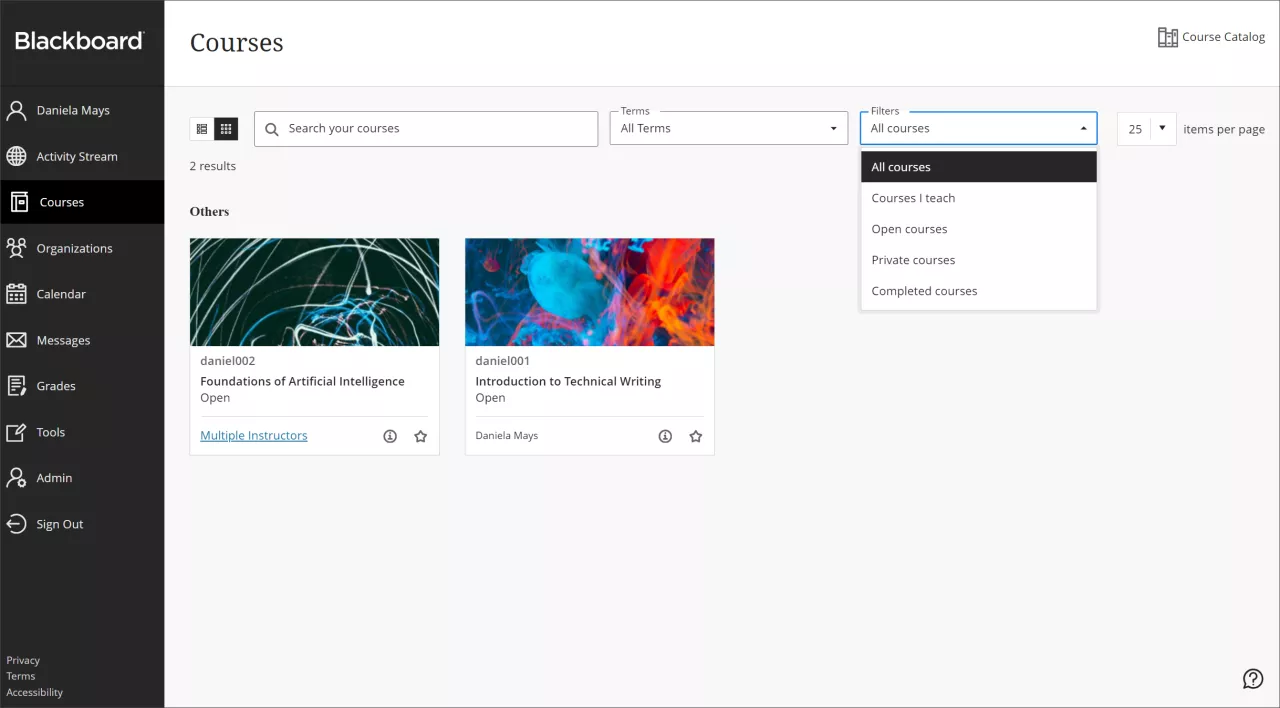
Don’t forget that you can click the star to mark a course as a favorite, so that it always appears at the top of your Courses page!
Enhanced Ultra Documents
One of the coolest new features was released in August – a new tool for creating Ultra Documents. Now, Ultra Documents are built on blocks that can sit side-by-side with other content! For example, place an image next to related text, add a file next to the associated instructions, or create multiple columns of text.
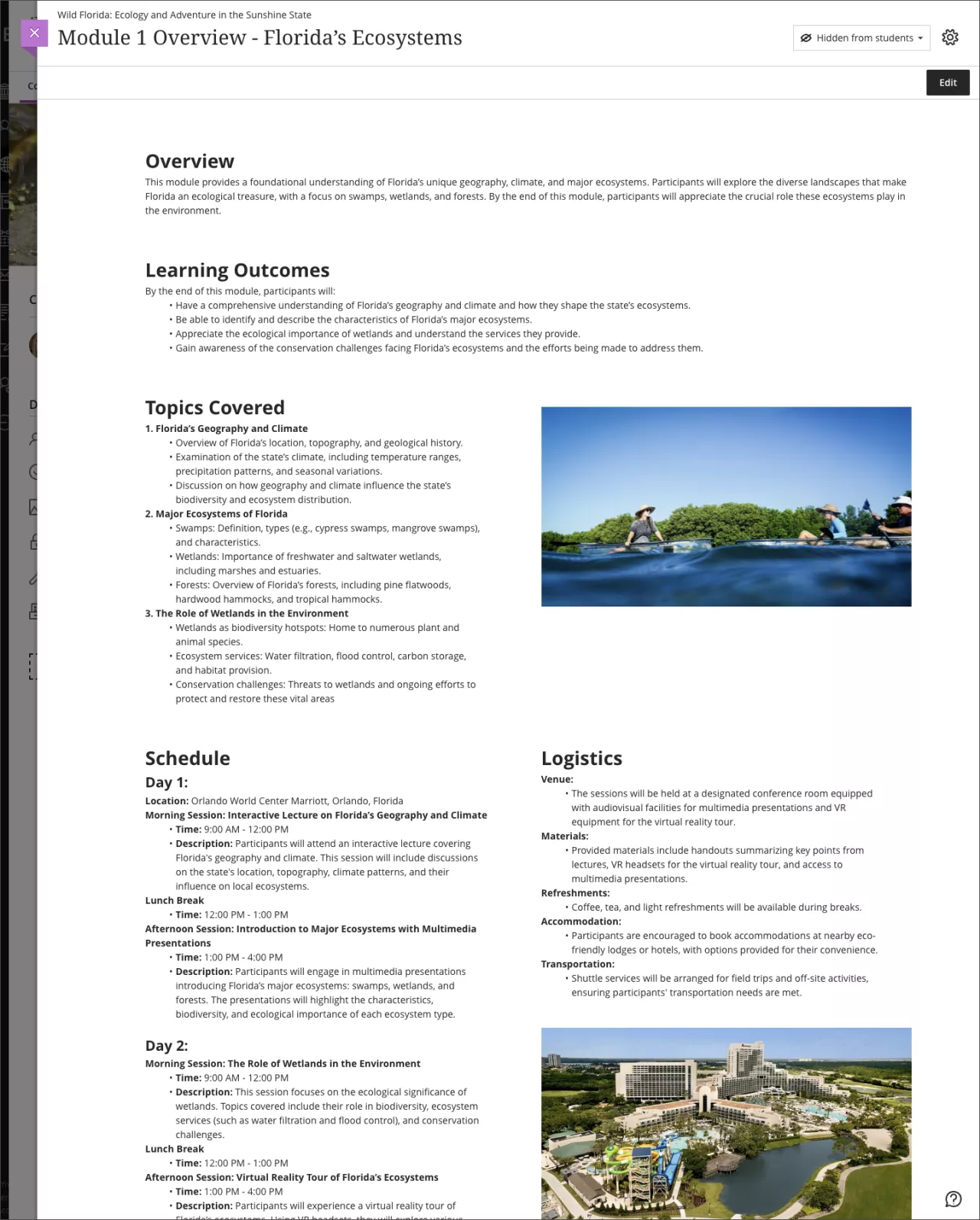
The new Ultra Document can also import an existing Word, PPT, or PDF file and convert it to an Ultra Document! This makes it easier for students to view content on a mobile device and makes it more accessible to students with disabilities. This works best with content you have authored as opposed to published files like journal articles.
In September, you will be able to add embedded Knowledge Checks to Documents!
AI Design Assistant
The AI Design Assistant is now available to anyone with the Instructor or Teaching Assistant role in a course. NIU piloted the AI Design Assistant in the Spring 2024 semester, and feedback was extremely positive.
The AI Design Assistant is an intuitive and efficient tool that gives you a head start on some of the more time-consuming aspects of building a course in Blackboard, while keeping you in control. It was developed in accordance with Anthology’s Trustworthy AI Approach, and with privacy, security and inclusivity in mind and is built on Microsoft’s Azure Open AI.
The AI Design Assistant has a number of capabilities now, with more planned for the future:
- Course structure suggestions – based on information you provide about the course, such as learning objectives or the course syllabus, the AI Design Assistant will recommend learning modules to structure the course
- Discussion generation – suggestions for open-ended prompts for discussions
- Journal generation – suggestions for open-ended prompts for reflection journals
- Assignment prompt generation – the AI Design Assistant can suggest assignment prompts that engage students in higher-order thinking, emulate real-world situations, and promote authenticity in student work
- Rubric generation – based on the instructions provided in an Assignment, the AI Design Assistant will generate a rubric you could use to assess student submissions
- Test question generation – suggestions for up to 10 questions at a time across a variety of question types
- Question Bank generation from Ultra Documents – generate Test questions based on a specific Ultra Document
- Insert or generate images – the AI Design Assistant can pre-load keywords in the Unsplash image search field as well as generate entirely new images based on your prompt (upgraded from Dall-E 2 to Dall-E 3 in August)
As of June, you can specify the output language of the AI Design Assistant!
Content generated by AI can be inaccurate or biased, so nothing is added to your course until you have reviewed and accepted it. Once added, you have full control to edit or remove AI-generated content.
Assessment and Grading Updates
There are a ton of small updates to assessments that will have a big impact on your teaching experience!
- Improved Assignment Tool – The Assignment has been functionally the same as a Test, which caused confusion for both faculty and students. The improved Assignment tool makes it quicker and easier for you to build Assignments by focusing on instructions instead of the full test editor and removing settings that aren’t relevant for Assignments. Additionally, Assignments won’t create an attempt for students until they add content, which means your instructions and settings won’t lock when a student just views the instructions (note that group, timed, and proctored assignments will still need to create an attempt as soon as the student opens the assignment).
- Print Blank Tests – In June and July, Blackboard added the ability for anyone with the Instructor role to print assessments, like Tests. In this initial release, you can only print blank assessments, with or without the answer key. In a future release, you will able to print assessments that use question pools (randomly selected questions) and to print completed assessments (i.e., an individual student’s Test submission).
- Improvements to Flexible Grading – The Flexible Grading interface allows you to grade by student (you see all of one student’s submission) or by question (you see all students’ submissions to one question), and both views have received updates.
- Grade by Student – In August, Blackboard added Next and Previous arrows to the top of the grading page to make it easier to navigate between students.
- Grade by Question – The May release introduced per-question feedback when grading by question, and the July release included the ability to add audio and video feedback.
- Anonymous Forms – When Forms were introduced, they were clearly identified with student information so that they could be used to collect information that needed to be matched with a specific student (such as signing up for office hours or a presentation topic). In August, Blackboard introduced a setting to make Form submissions anonymous sot hat they could be used for teaching feedback or more sensitive information.
Discussion Improvements
There are two small but often-requested improvements to Discussions.
- Anonymous Discussions – April introduced a setting to allow anonymous posts and replies to Discussions. Students can choose whether they want their post to be anonymous. Anonymous discussions cannot be graded, as that would violate the anonymity.
- Follow Discussions – In August, Blackboard added a feature to follow discussions to receive alerts when new posts are made. In the initial release, these alerts will appear on your Activity Stream, but a future update will add an email option for these alerts.
Multiple Release Condition Rules
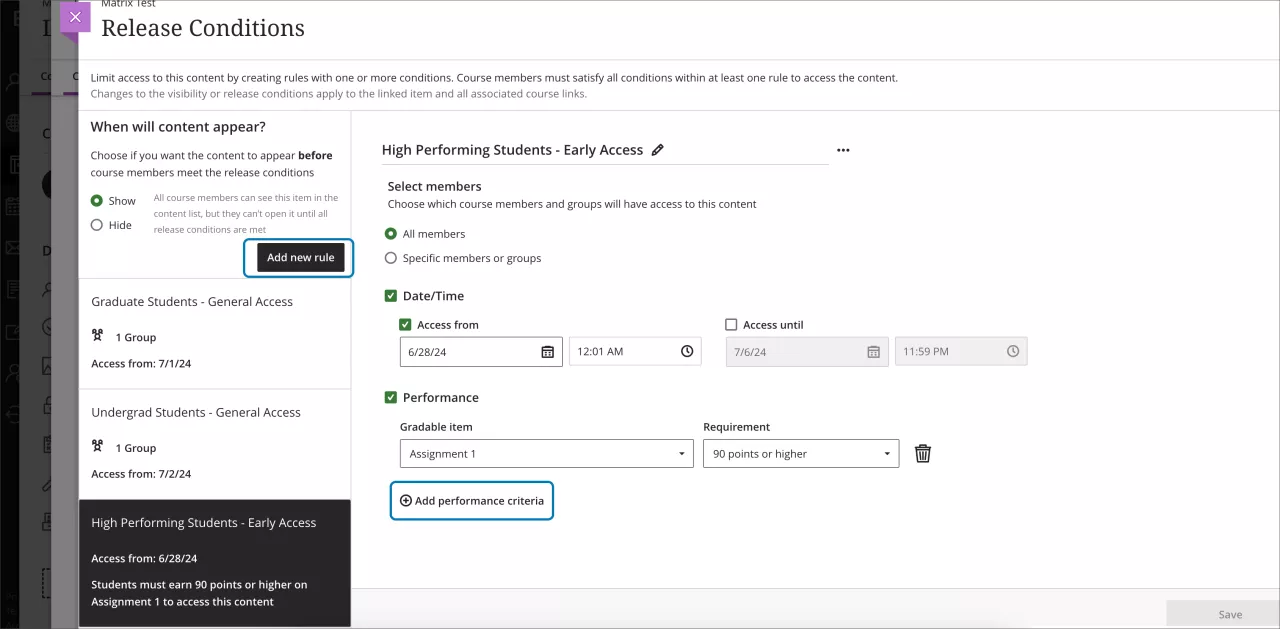
Release Conditions allow you to specify when or why students should be able to access content and assessments in your course. Release Conditions can include a combination of date, time, and grade range (performance). You can also specify individual learners or groups in Release Conditions.
With multiple Release Condition rules, you can create multiple pathways or conditions for accessing content. For example, perhaps graduate and undergraduate students have different requirements to access the content, or multiple students need access on different days due to personal conflicts (such as taking a test early or late).
Even More Updates!
Here is a really quick run through of a few other, smaller changes:
- Immediately post announcements – instead of having to save your announcement and then post separately, you now have the choice when creating an announcement whether you want to save the draft or post it.
- Test questions worth 1 point by default – the default point value for new test questions has changed from 10 points to 1 point. Existing test questions have not been changed.
- Duplicate questions – you can now duplicate test questions to quickly create a copy that you can edit. This is really useful when you have a number of questions that follow the same format.
- Weighted grades – in Ultra, all weighted grade calculations have been proportional, meaning that assessments in the same category counted more or less in the calculation if they had different points possible (a 10 point quiz affected the grade more than a 5 point quiz). Now, you can now decide whether assessments should be weighted either equally or proportionally.
Looking Ahead
There are some amazing things coming up this semester. For example, in September we are expecting changes to improve the layout of the Content page, the addition of Knowledge Check questions in Ultra Documents, a robust student activity log that tracks all of their actions in the course, a better workflow for students to view Assignment submissions and feedback, and a new Gradebook Overview page that highlights assessments that need to be graded and grades that need to be posted.
If you want to learn more about what Blackboard has planned, register for their upcoming Roadmap Webinar on September 4 at 10 AM at learn.anthology.com/RoadmapWebinarSeries
As new updates are released, you can find a quick video summary and links to more details on the Blackboard Updates page of the Teaching and Learning with Blackboard website. If you would like to further explore the newly released features or if you need assistance improving your course, please feel free to contact CITL!
