

Video content can be an integral part of any course, but especially asynchronous online classes. How you share that content—and to what end—matters. There are multiple technologies available for sharing video content with students, and each has its own affordances. It’s important to select the right technology for the type of learning interaction you want students to have.
Some of the options for sharing video content with students at NIU include VoiceThread, Kaltura, OneDrive, and social annotation tools. Each of these supports teaching and learning in very different ways. Some options are appropriate for more passive video consumption, while others lend themselves more readily to an interactive experience. We’ll explore the affordances of each of these options, with a particular focus on VoiceThread, which was part of our Online Learning Tools Review and has moved to a more limited license, making it important that those who use it moving forward take advantage of its pedagogical capabilities.
When is VoiceThread the best fit?
VoiceThread is specifically designed to support asynchronous multimedia discussion centered on specific artifacts. It’s not designed for one-way delivery of video content. Unlike video sharing tools, VoiceThread allows students to respond using voice, video, or text in situ—on a slide, image, or document, or at a specific moment in a video. VoiceThread isn’t just multimedia commenting: it’s artifact-anchored, temporally and spatially contextualized discourse. Comments are not appended; they are embedded.
VoiceThread works best when:
- Students need to point to something specific and explain what they’re seeing or thinking
- You want students talking through their ideas, not just typing them out
- The conversation should stay connected to particular parts of an image, slide, or video
- Students are building on each other’s responses in a more back-and-forth, layered way
- It’s useful for students to revisit earlier comments and rethink their ideas after hearing others
Because comments are anchored to the artifact itself and can include voice, video, and on-screen annotation, VoiceThread works well for visual analysis, peer feedback, narrated presentations, and reflective assignments where students need to show how their thinking develops in context.
How does VoiceThread compare to other tools?
The chart below summarizes how VoiceThread differs from Kaltura, OneDrive, and social annotation tools (e.g., Perusall) based on instructional purpose and recommended use.
| Feature / Teaching Need | VoiceThread | Kaltura | OneDrive | Social annotation (e.g., Perusall) |
| Overall purpose | Supports multimedia, artifact-centered discussion | Hosts and delivers instructional video (Blackboard-integrated) | Stores and shares files | Supports collaborative annotation and discussion on video content |
| Interaction style | Layered, in-situ discussion using voice, video, text, and on-screen annotation | Mostly one‑way viewing | No built‑in discussion | In-situ, text-based annotation anchored to timestamps, with threaded replies |
| Student experience | Responds directly to specific slides, images, or moments in video | Watches videos; may answer embedded questions (for Quiz feature) | Accesses shared documents and media | Annotates videos at specific points |
| Participation model | Structured interaction tied to specific media | Passive consumption | Individual access and file sharing | Distributed, text-centered discussion across a shared artifact |
| Instructor role | Selects or creates media, embeds prompts tied to specific parts of the artifact, and facilitates discussion around student responses | Creates or uploads video content, organizes it for access, and may add quizzes or checkpoints to guide viewing | Uploads and organizes files, shares them with students, and may provide separate instructions for how materials should be used | Selects media, sets expectations for annotation and response, and guides discussion through prompts and occasional intervention |
| Best used when you want to… | Have students explain thinking while pointing to or interacting with specific content | Deliver lectures or demonstrations efficiently | Provide access to materials or collect/share files | Have students engage closely with videos through annotation tied to specific passages or moments |
How do I use VoiceThread to its full potential?
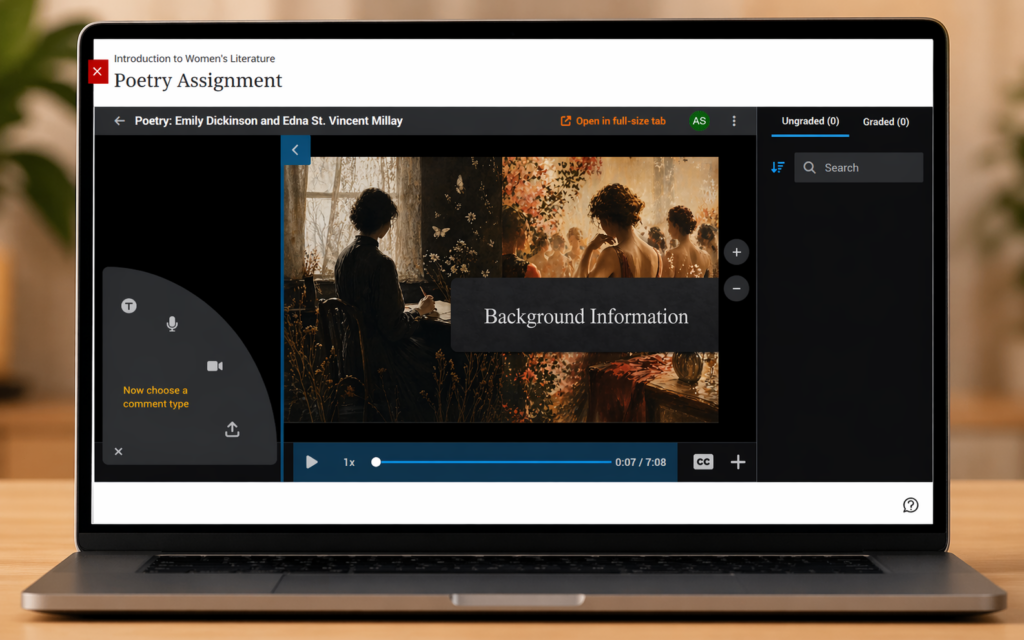 VoiceThread is most effective when it is intentionally designed around interaction, not just content delivery. Simply uploading slides or a video without structured prompts tends to result in minimal or superficial engagement. To use VoiceThread well, anchor your prompts to specific parts of the media. For example, ask students to interpret, analyze, or respond to something concrete, rather than responding generally. Also, require multimodal responses when appropriate. Voice or video comments can be particularly useful for explanation, reflection, or language use. Another affordance of VoiceThread is interaction, so build in expectations for students to respond to peers, extend ideas, or revisit earlier comments. It’s also helpful for students if their instructor models the kind of engagement they want to see. Early instructor comments can demonstrate depth, tone, and use of the annotation tools.
VoiceThread resources:
**Following the Spring 2026 semester, the Blackboard–VoiceThread integration will transition to limited access. Faculty who want to continue using VoiceThread need to submit a request form indicating how the tool supports their course design. This change reinforces the importance of using VoiceThread intentionally for the types of learning interactions it is designed to support, rather than as a general video-sharing tool. Faculty may also request to be removed from NIU’s VoiceThread license to use a Free Educator VoiceThread account. Contact us at citl@niu.edu to discuss this option.
How do I export/download my videos from VoiceThread?
 If you have existing content in VoiceThread, you may want to retain local copies or move materials into other platforms such as Kaltura or OneDrive.
Faculty can export VoiceThread content, though the format and fidelity may vary depending on the type of media and comments included. Downloading is most useful for preserving original media (e.g., slides, uploaded videos), but interactive elements (such as layered comments) may not transfer seamlessly to other tools. All exported VoiceThreads are available in .mov format.
Key considerations:
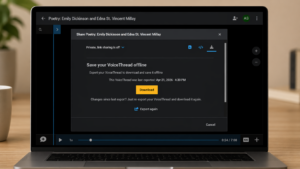 Plan ahead—exports can take time depending on file size and quantity
- Determine whether you need just the media or a record of the discussion
- Review exported files to ensure usability before relying on them in another platform
Resources:
How can I move content from VoiceThread to Kaltura or OneDrive?
VoiceThread content is not directly integrated with Kaltura or OneDrive, so moving materials between platforms requires intermediate steps (export, download, then re-upload).
A typical workflow looks like this:
- Export and download your media from VoiceThread
- Upload video content to Kaltura if your goal is delivery or embedding in Blackboard
- Upload files to OneDrive if your goal is storage, sharing, or distribution
Resources:
How can I learn how to share videos using Kaltura?
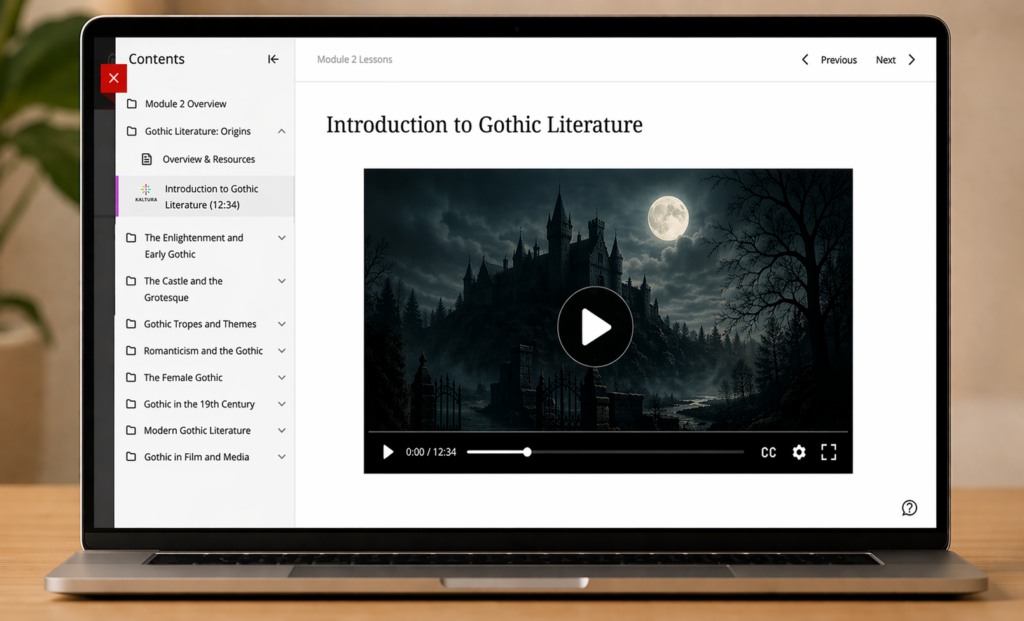 Kaltura is the university-supported platform for hosting and delivering video content within Blackboard. It is optimized for reliability, accessibility, and integration with course sites. If you share your video content via Kaltura, you can embed the video directly into your Blackboard course for inline viewing, add interactive elements such as quizzes, and track basic analytics on student viewing. Kaltura is the appropriate alternative when your primary goal is content delivery, not discussion or annotation.
Resources:
- Kaltura (NIU)
- Create and Share Video Content in Your Courses using Kaltura (Guide for Faculty)
- Creating [Kaltura] Quizzes
- Adding Hotspots for Interactivity
How can I share links to videos using OneDrive?
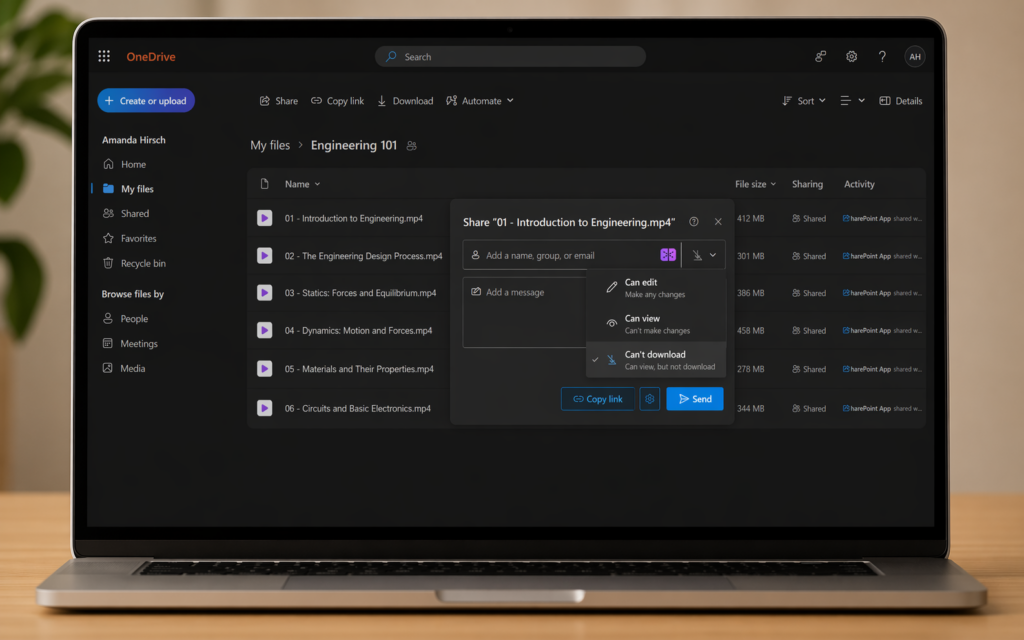 OneDrive serves a more basic, infrastructure-level role than tools like VoiceThread, Kaltura, or Perusall. It’s designed for file storage and distribution rather than structured learning activities or media-rich interaction. You upload a video, generate a link, and share it. There’s minimal configuration beyond access permissions. OneDrive simply provides a reliable way to host and deliver the file itself.
Resources:
- Share files and folders in Microsoft OneDrive
- Manage sharing and permissions in OneDrive and SharePoint
How can I have students annotate a video in Perusall?
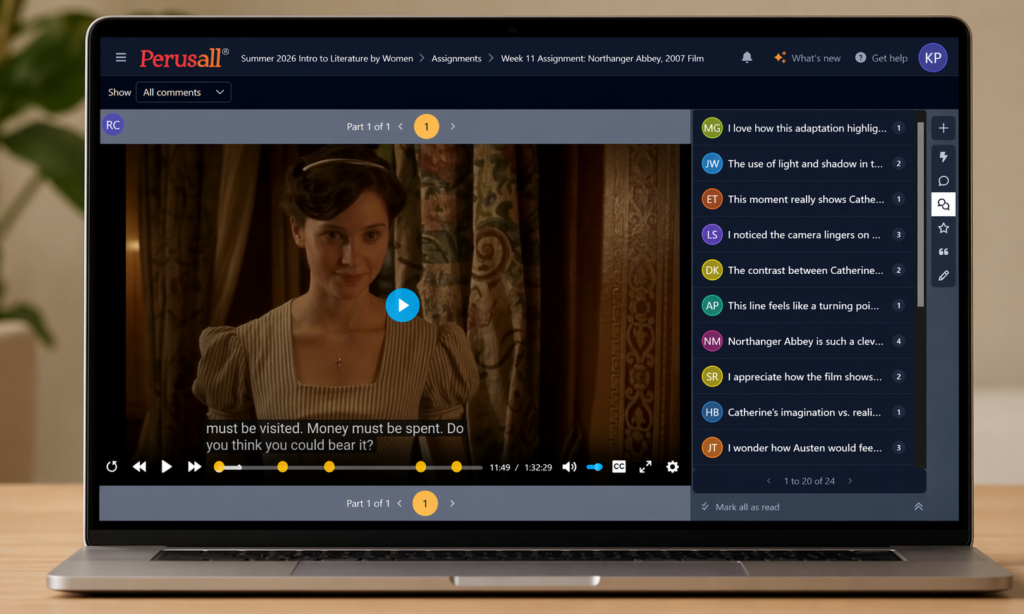 If your goal is to have students engage closely with video content through written discussion tied to specific moments, Perusall can be an alternative to VoiceThread—particularly when text-based interaction is sufficient or preferred. Perusall allows students to annotate videos at precise timestamps and respond to peers in written threaded discussions. It’s particularly useful for guided viewing assignments, critical analysis of video content, and surfacing questions and misunderstandings. Unlike VoiceThread, Perusall focuses on text-based annotation, not multimodal response. So, if you want students to engage in multimodal response, VoiceThread will be a better option for you.
Resources:
- How do I use videos in Perusall?
- Information for instructors teaching courses using Perusall
- Video tutorials: Getting Started for Instructors
- Information for students taking courses that use Perusall
- Video tutorials: Getting Started for Students
Bottom Line
In practice, each tool should align with a distinct instructional goal:
- Choose VoiceThread when students need to respond to specific media, explain their thinking aloud, and engage with peers’ ideas in context. If the learning activity depends on hearing and seeing how students make meaning, VoiceThread is the appropriate choice.
- Choose Kaltura when your primary goal is efficient delivery of lecture or instructional video and students do not need to respond to specific parts of the content.
- Choose OneDrive when you need a secure place to store, share, or collect files, not to facilitate discussion or learning interaction.
- Choose Perusall when your goal is to have students engage closely with readings or videos through text-based annotation, responding to specific passages or moments and building discussion in context.
In short: match the tool to the type of interaction you want—VoiceThread for multimodal discussion and interaction, Kaltura for delivery, OneDrive for access, and Perusall for text-based annotation and engagement.
Finally, when copying courses, review any integrated tools (LTI links) and remove those you are not actively using. Leaving unused links in place can confuse students and create unnecessary entry points into tools that are not part of the course design. It can also create support and data usage issues for CITL as we conduct future online tool reviews.
If you’re copying a previous course, ensure that all VoiceThread links are updated to use LTI 1.3 (Deep Linking) and test each link to confirm it functions correctly beginning in Summer 2026.
Need Help Choosing the Right Tool?
If you’re deciding whether VoiceThread, Kaltura, or another tool best fits your course goals, CITL can help. CITL staff can consult with you about learning objectives, interaction needs, and how technology choices align with your overall course design.
You can schedule a one‑on‑one consultation through the CITL website, attend a workshop, or explore CITL’s teaching resources for guidance on making intentional technology choices that support student learning.
