
On January 8, 2026, a few areas of Blackboard will receive a visual refresh. These changes will be part of the Blackboard January update and are designed to maximize space, reduce clicks, and create faster and easier navigation. The Base Navigation page will be refreshed to create a more modern and cleaner look, and your courses will open as full-screen pages.
Modernized Base Navigation
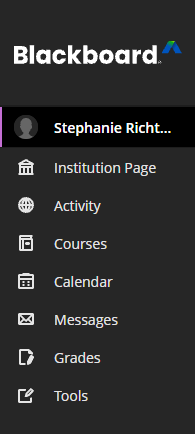
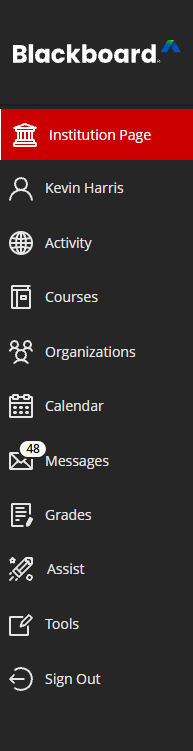
Base Navigation, the first page you see when signing into Blackboard, will see minimal changes. The cleaner layout moves your profile to the top of the navigation tabs and reduces the size of the menu items. These are aesthetic changes that do not impact course content or performance.
| New Base Navigation Menu
| Old Base Navigation Menu
|
Full Screen Course Pages
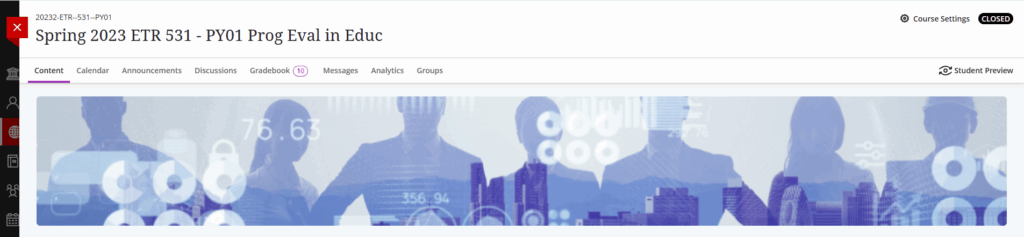
Your courses will open as a full screen instead of a panel, which maximizes space and reduces visual clutter. The header includes a new Home button, a course drop-down selector, and the course name. The course name and ID will appear on top of the course banner.
All courses will now have a banner, as well. If you don’t add a banner image, the banner will be a dark red gradient. The banner will automatically include the course name and course ID, added as accessible text.
New Design

Old Design
Home Button
The red X is gone from the top-level pages in your course – and so is accidentally closing your course when you click it by mistake! To exit a course, you will click the new Home button to return to the Institution Page. Content items such as Documents, Tests, and Assignments will still appear as slide-out panels and will need to be closed with the red exit button (X). However, Blackboard has plans to also change these in the future.

Course Switcher
To streamline navigation, Blackboard is adding a new Course Switcher drop down which allows you to quickly and efficiently move between courses. You will no longer need to return to the Courses page to move to a different course. For now, the Course Switcher will show the most recent 4 courses that you have accessed, but future enhancements will add more courses and search functionality.

Tips and Support
Due to Blackboard’s release schedule, these changes will go live on Thursday, January 8, so there isn’t much time to try it out before the start of the semester. If you’d like a sneak peek, you can self-enroll in this course on our test server to see it in action. You can also request a Shell on the test server (which is great for trying out banners with the new course name overlay).
If you need support navigating these new changes, please email CITL or schedule an individual consultation.
